
Members pay by UPI, the committee records it: how PayMatch works
Members pay the masjid by Google Pay or any UPI app, as they do now. PayMatch, on the committee phone, finds who paid, and the treasurer confirms and sends the receipt. Both sides, with screenshots.
Published 18 Nov 2026 Updated 20 Nov 2026 6 min read
More and more families pay their varisangya with Google Pay, PhonePe or another UPI app. For them it is easy: a few taps and it is done. For the treasurer it is more work. The money reaches the bank, but the name on it is the payer's name, and that is often not the member's name. A son pays for his father, a wife pays from her own phone, a name is spelt another way. Someone has to work out who paid and for what, and then write the receipt.
PayMatch is our Android app for committees that use InflowBooks, and it does that work. This guide explains both sides: what the member does to pay, and what the committee does to record it.
In short
- Members do not need any app. They pay by UPI, the same way they do now.
- Only the committee needs PayMatch, on the phone where the masjid's Google Pay payments arrive.
- Nothing is recorded on its own. A committee member checks each payment and taps Confirm. Then the receipt is made. The one exception is a Desk mode session you start as automatic, described below.
Side 1: the member pays
The member does not install anything. There are two ways to pay, and both work.
The easy way: the Pay button
If your masjid has turned on its payments page, a member can open it, see what they owe, and tap Pay. A QR code opens with the amount filled in, and they pay it from any UPI app.
The Pay button adds a short member code to the payment note. The member does not type it or need to know it. It is what tells the committee's phone exactly who paid and for which fund.
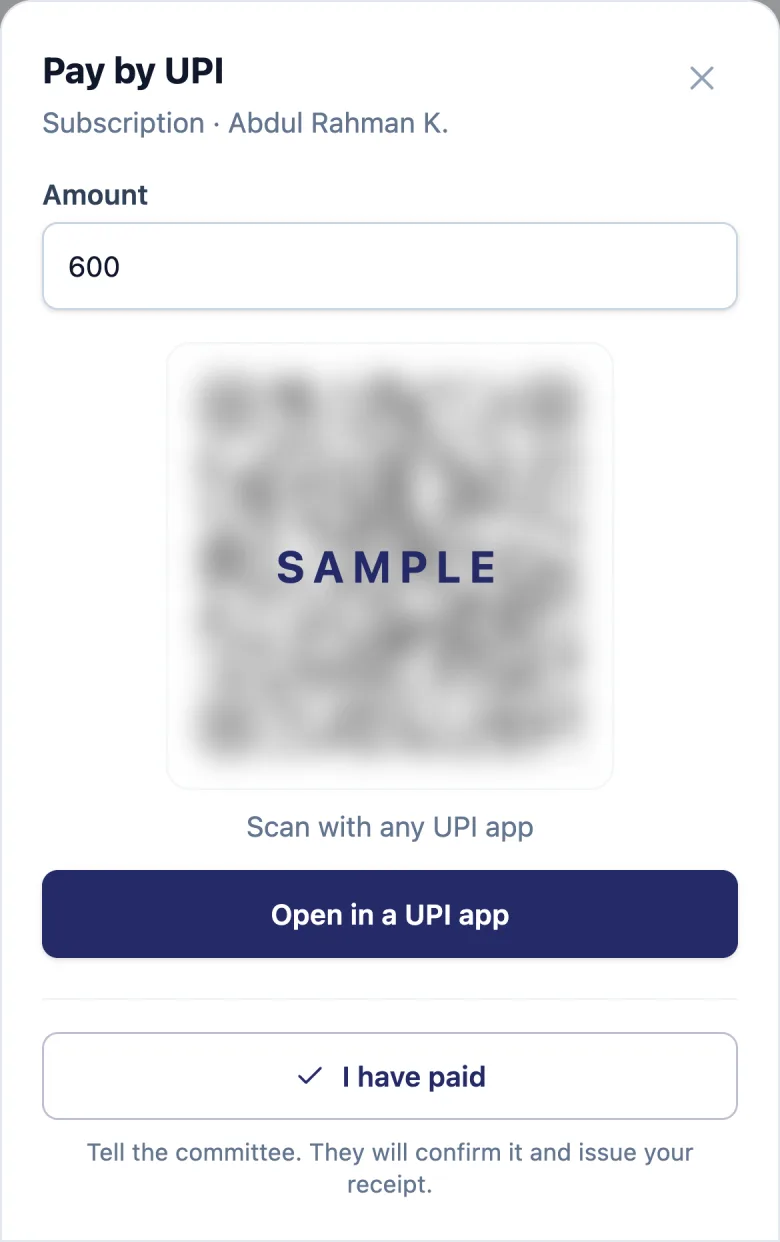
The member can also tap I have paid to tell the committee themselves. More on the payments page is in member payment lookup.
New: one QR code for everything owed
A member who owes in more than one fund does not have to pay each one on its own. The payments page has a Pay all dues button: one QR code for the whole amount, with the months it covers listed above it.
- Paying from the same phone: tap Save QR, open the UPI app, choose Scan, then Upload from gallery and pick the saved QR code.
- Someone else is paying: tap Share QR and send the picture to the son, daughter or relative who pays. Or let them scan the screen with their own phone.
- More than ₹2,000 owed: UPI apps take up to ₹2,000 in one payment when the QR code is opened from the gallery. So the page asks for ₹2,000 first, the oldest months first, and then shows the QR code for the rest. Scanned from another phone, the whole amount can be paid at once.
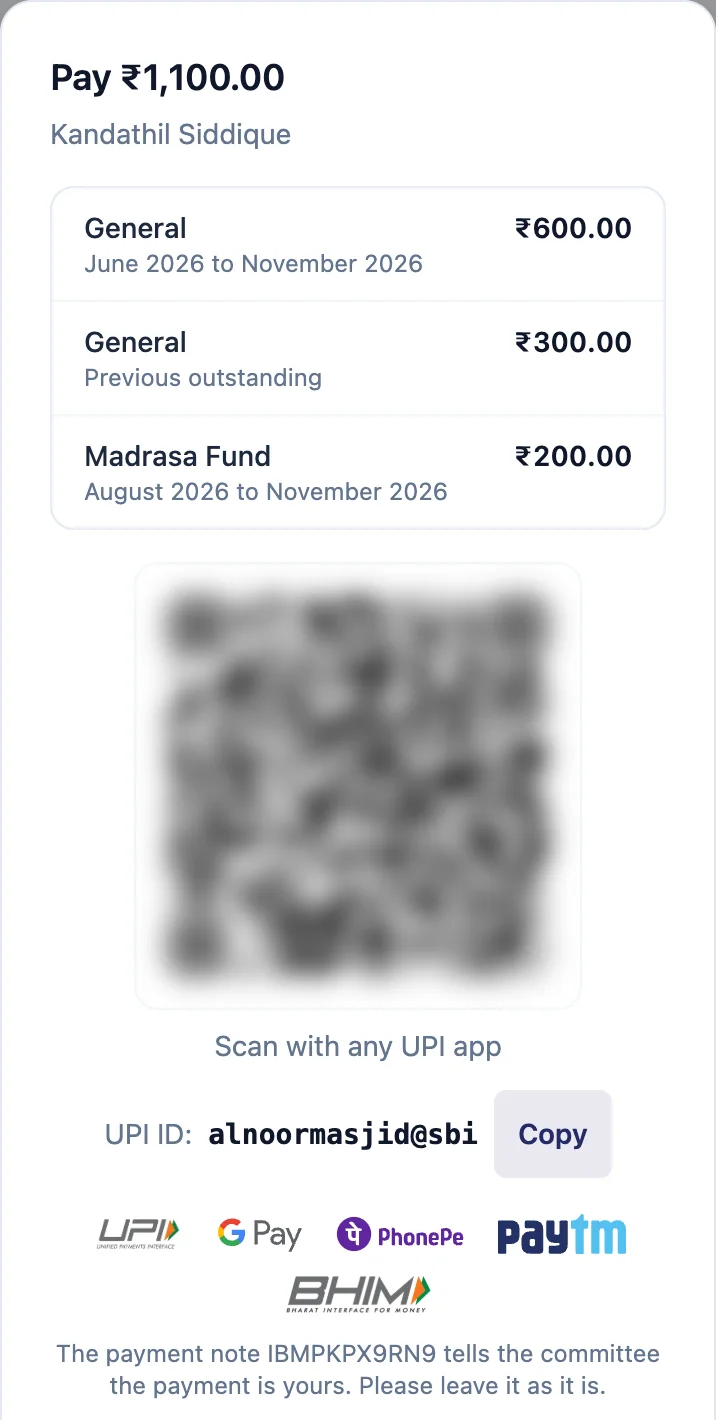
The member does not have to report anything. When the payment reaches the committee's phone, the page says it was received, and the receipt follows once a committee member confirms it.
The usual way: pay the masjid's UPI ID
Many members will keep paying the way they always have: scan the masjid's QR code on the wall, or type its UPI ID. That is fine. These payments have no member code, so the committee picks the member on the phone. It takes a few seconds, and PayMatch can remember the payer for next time.
Getting the receipt
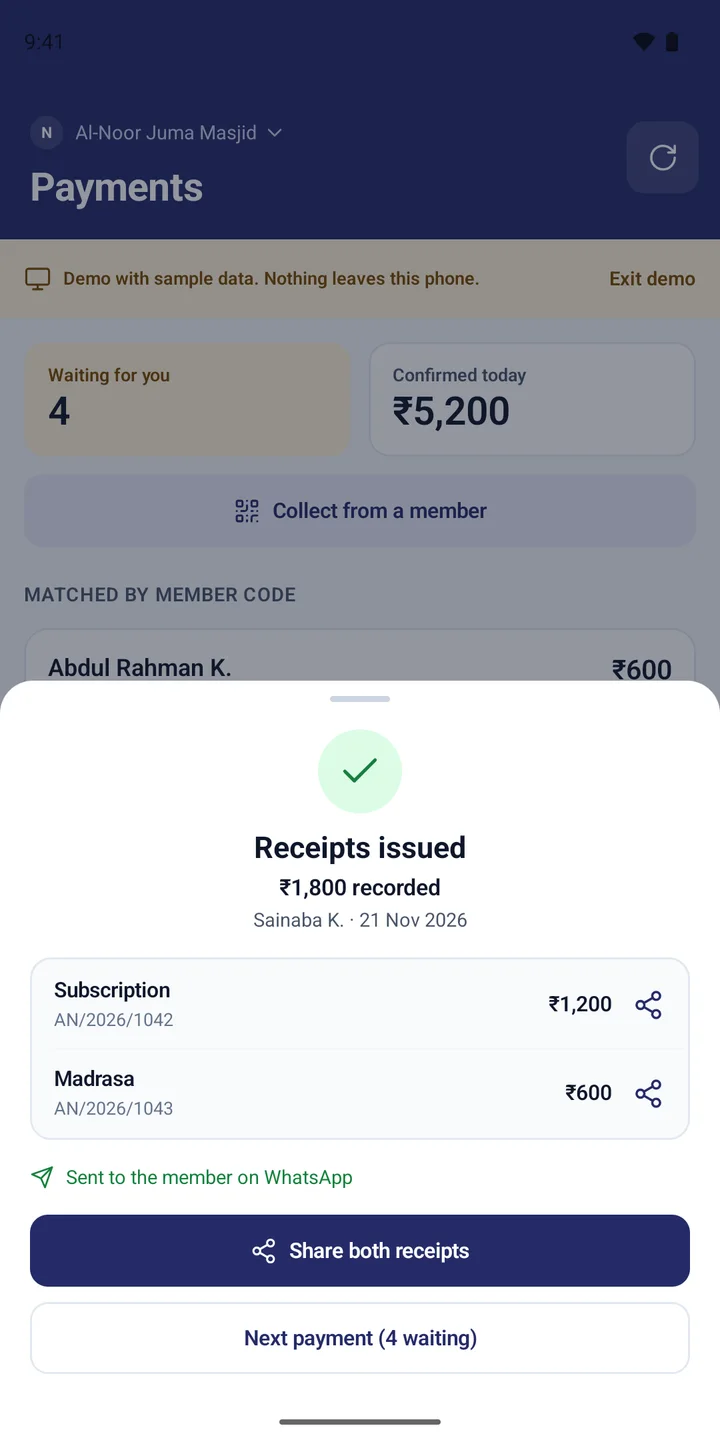
Once a committee member confirms the payment, the receipt is made with its own number. If the masjid sends receipts on WhatsApp, the member gets it there without anyone doing anything. If not, the committee member shares it from the phone. When one payment covered more than one fund, there is a receipt for each fund, and on WhatsApp they arrive together in one message. The member can also see all their payments on the masjid's payments page at any time.
Side 2: the committee records it
The first time takes a few steps. After that, it is one tap per payment.
Which phone
Use the phone where the masjid's bank account is set up in Google Pay, because that is where the payment notifications appear. Usually this is the treasurer's phone. Other committee members can connect their own phones too, and every connected phone sees the payments that came with a member code.
1. Connect the phone, once
- Install PayMatch from Google Play.
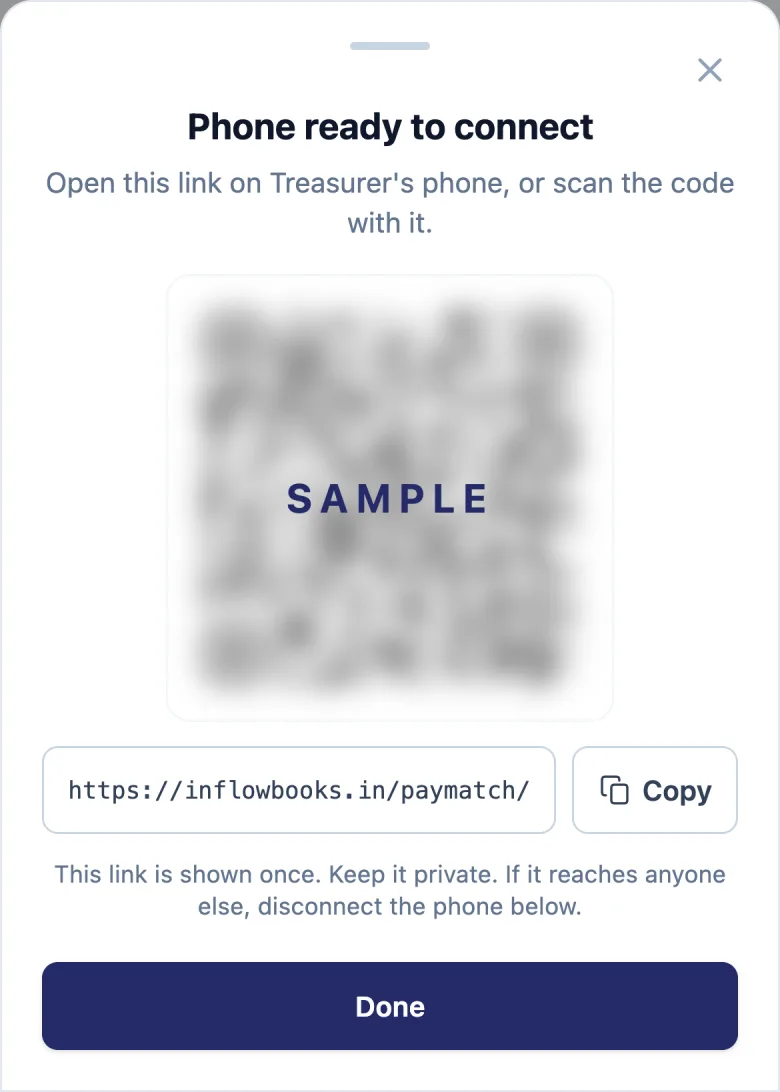
- On the InflowBooks dashboard, open Account, then Phones. Type a name for the phone and tap Connect phone.
- Open the link on the phone, or scan the QR code with the phone's camera. PayMatch opens and connects.
2. Allow PayMatch to read payment notifications
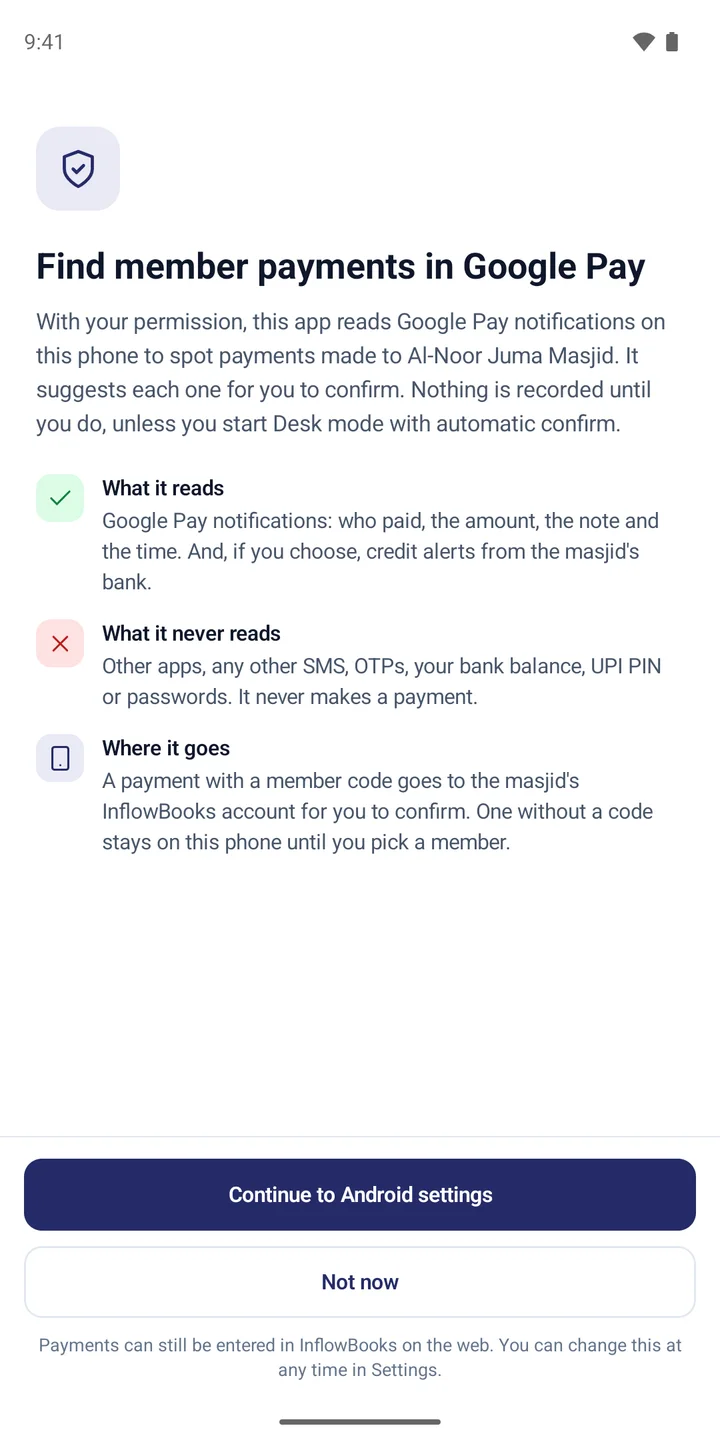
Before it asks for anything, PayMatch shows what it reads and what it never reads. Then it takes you to Android settings to turn on payment reading.
3. Payments come into a list
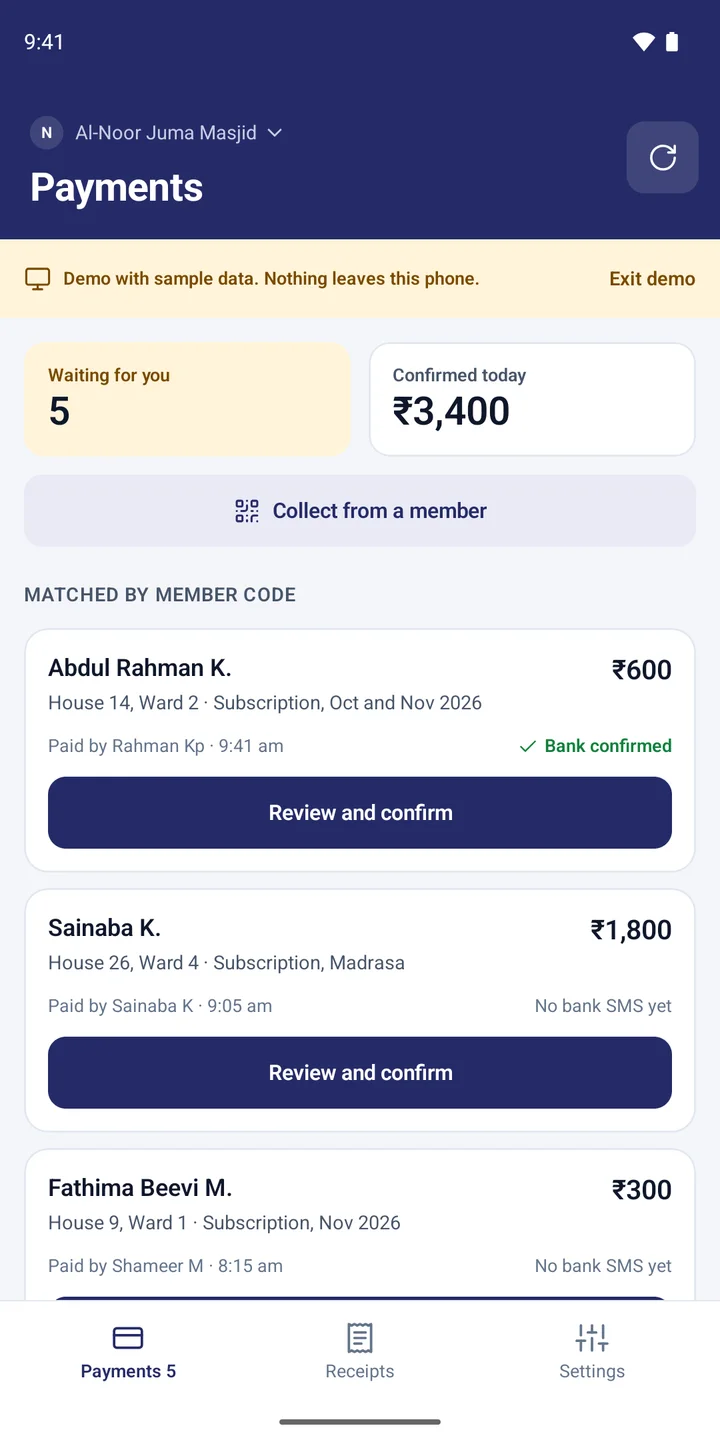
When a member pays, Google Pay shows a notification on the phone. PayMatch reads it and puts the payment in a list, in two groups:
- Matched by member code: paid with the Pay button. PayMatch already knows the member, the house and the fund.
- Needs a member: paid without a code. It stays only on this phone until you pick the member.
4. Check, then confirm
Tap Review and confirm. You see the member, what the payment is for, the fund and the Google Pay details. If something is wrong, change the member or the fund. Then tap Confirm and issue receipt. The phone asks for its screen lock or fingerprint, so nobody else can confirm from it.
The receipt number shows at once. If your masjid sends receipts on WhatsApp, PayMatch sends it to the member straight away and the screen says when it has gone. Otherwise tap Share to send it. Tap Next payment to carry on.
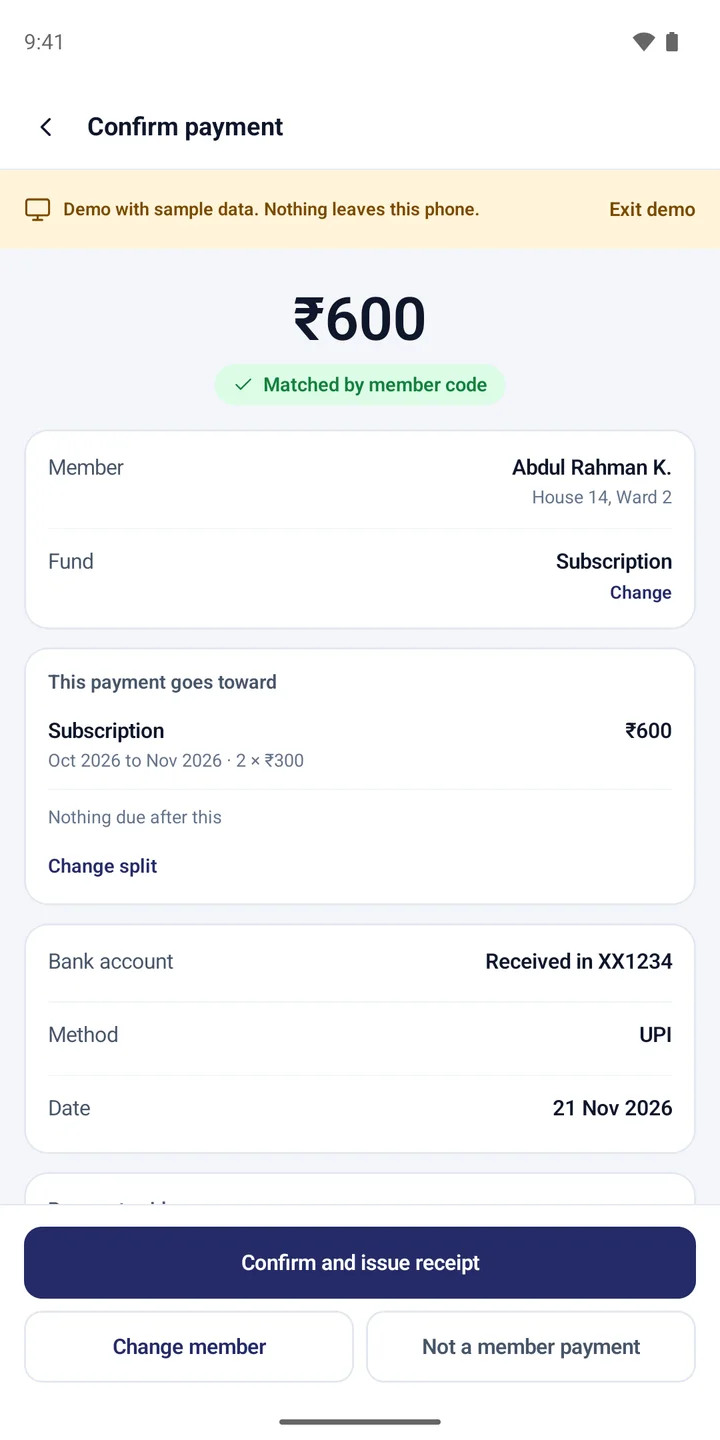
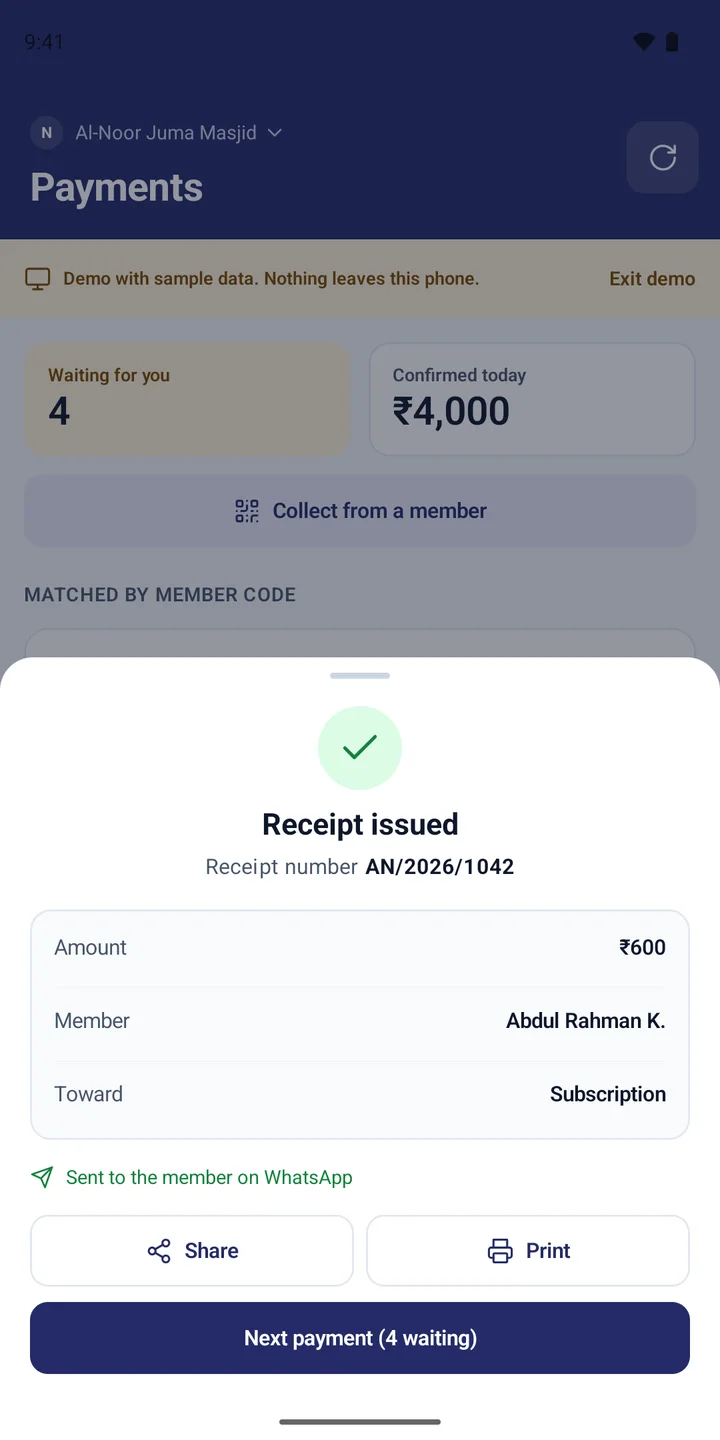
If a payment looks like one already recorded, PayMatch warns you before recording it again. For money that is not from a member, tap Not a member payment. It leaves the list and nothing is recorded; you can still add it on the dashboard as usual.
One payment for several funds
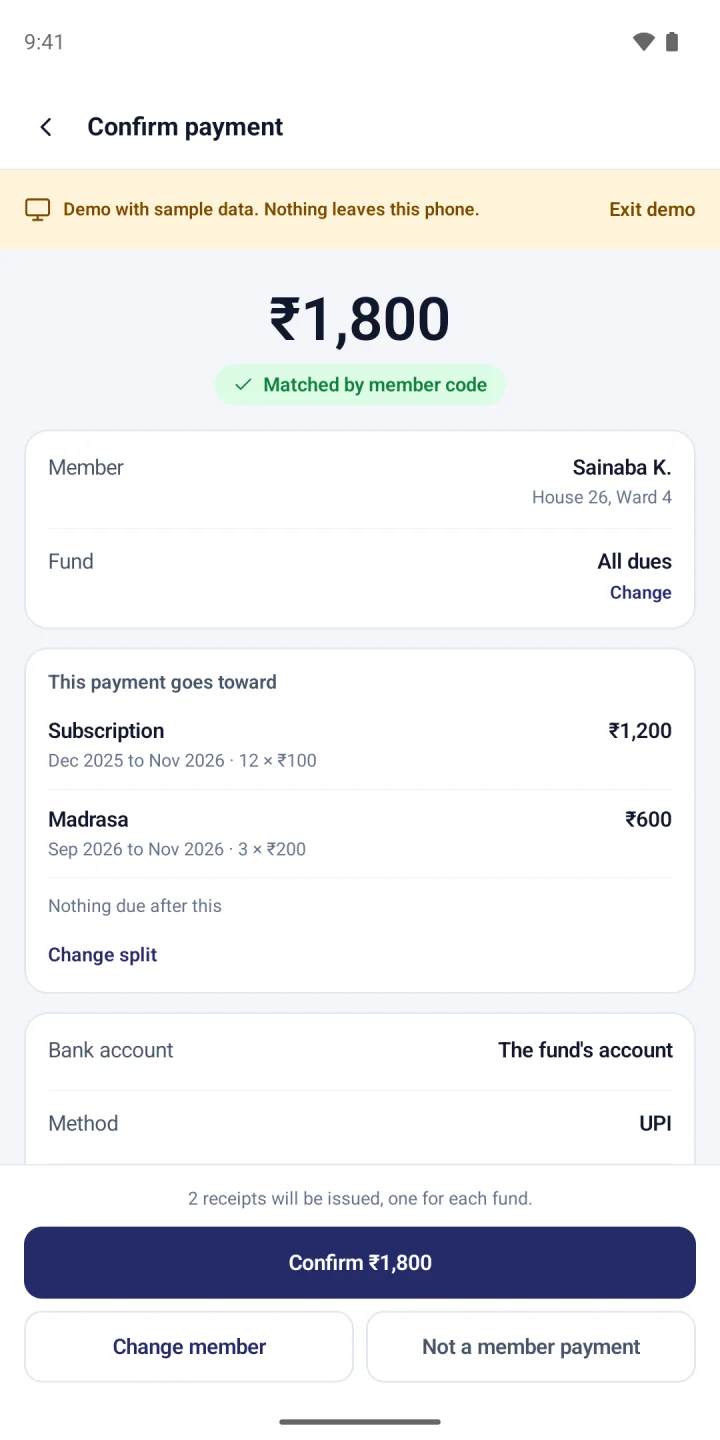
When a member pays with Pay all dues, one payment can cover the subscription, the madrasa fund and anything else they owe the masjid. PayMatch shows how it will be split: the fund with the oldest unpaid month first, month by month. If the member paid less than the total, the oldest months are filled first. If they paid more, the rest is recorded as paid in advance.
Tap Change split to change it before you confirm. On Confirm, each fund gets its own entry and its own receipt, so every fund's books stay correct. If the same dues are paid a second time by mistake, PayMatch says that nothing is due and asks before recording the money as an advance.
Collect on the spot: show a QR code
When a member is standing in front of you, they do not need to find the masjid's QR code. In PayMatch, tap Collect from a member, pick the member, and choose what to collect: everything they owe, only some funds, a part of the amount, or money toward another fund. PayMatch shows a QR code with the amount filled in. The member scans it with any UPI app and pays.
If the member has their own pay QR with them, on a phone or on paper, you do not have to search: tap the scan button beside the search box and point the camera at it. PayMatch reads only the member code and opens that member's dues.
Because the member scans the QR code straight from your screen, the ₹2,000 limit for saved QR codes does not apply. The payment arrives in your list already matched to that member, split the way you chose, ready to confirm.
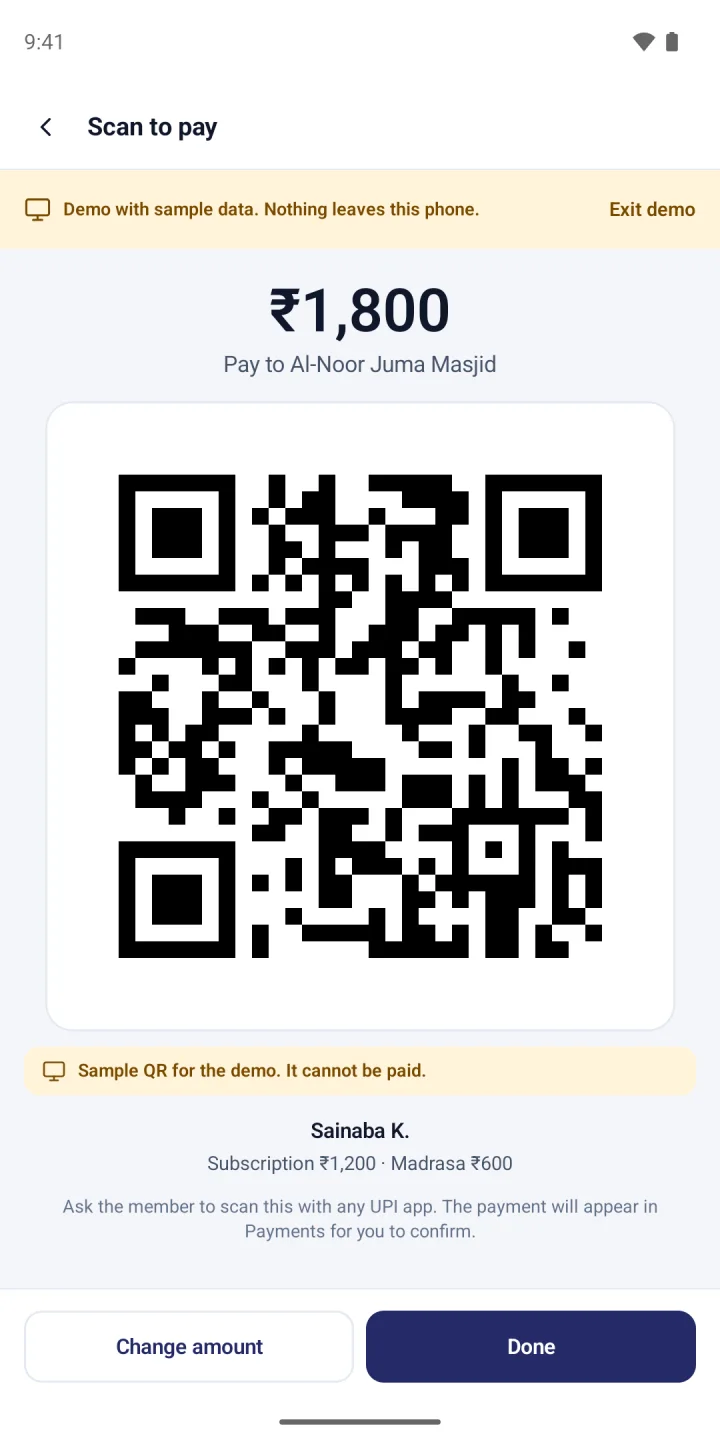
On a collection day, switch on Desk mode. It first asks how payments should be confirmed. With Confirm each payment, the QR code turns into a green "received" when the member's payment arrives and you confirm with one tap. With Confirm automatically, a payment for exactly the amount on the QR code is recorded in your name and its receipts are issued without a tap. Any other amount, or a payment that may be a repeat, still waits for you. Either way, the search for the next member opens by itself.
An alert when a QR payment arrives
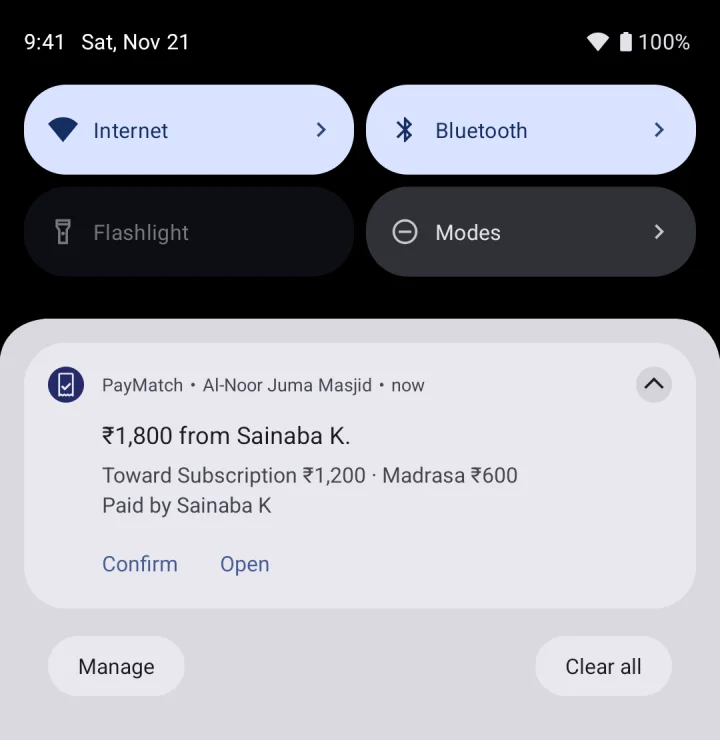
PayMatch can show a notification of its own when a payment made from a pay QR arrives while the app is not on screen. It shows the amount, the member and the funds the money goes toward. Turn it on in the app's Settings, under Payment alerts.
Open shows the payment. Confirm asks for the phone's screen lock or fingerprint and opens the same screen, where one tap issues the receipt. Nothing is recorded from the notification itself, and while the phone is locked the alert says only Payment received, with no name or amount.
When there is no code: pick the member
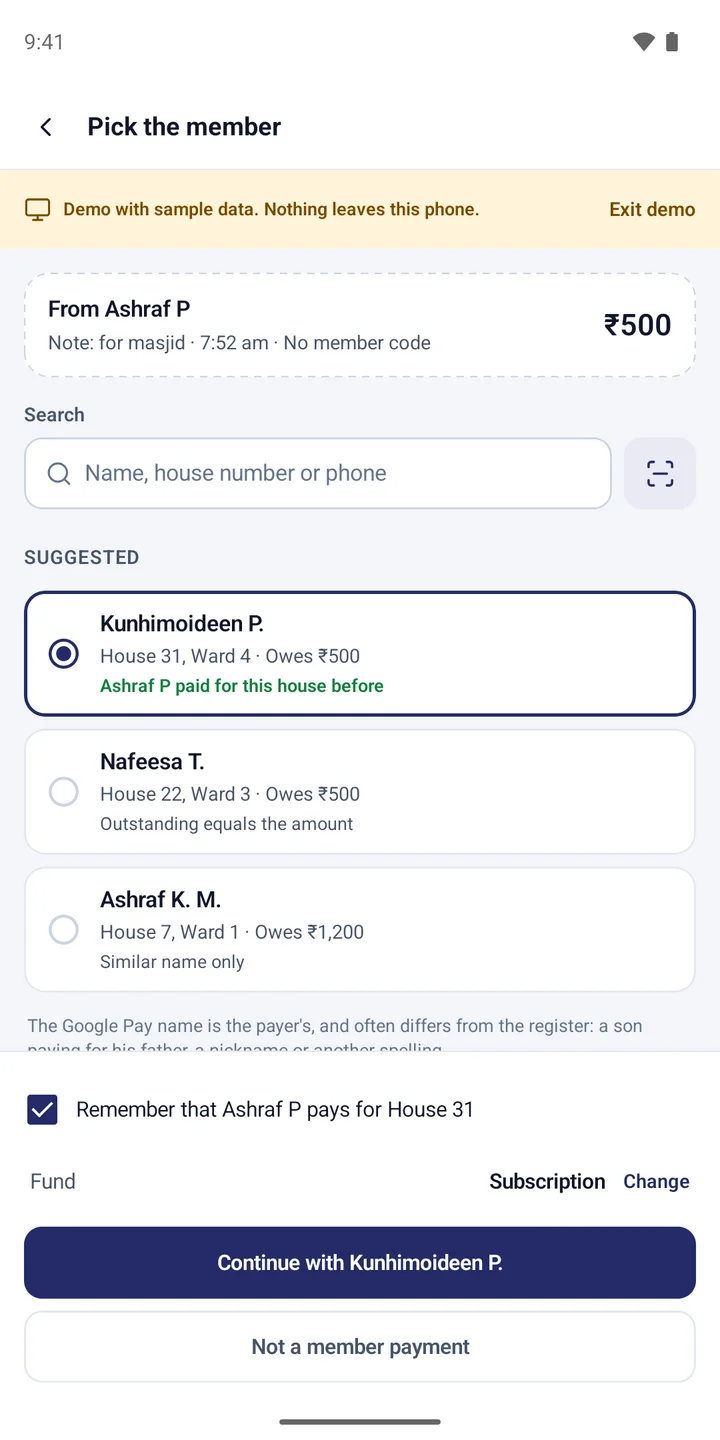
Tap Pick member and search by name, house number or phone. PayMatch shows first the members whose dues match the amount, and the house this payer has paid for before.
Tick Remember that ... pays for this house, and the next time the same Google Pay name pays, that member is suggested first.
Optional: a check with the bank's SMS
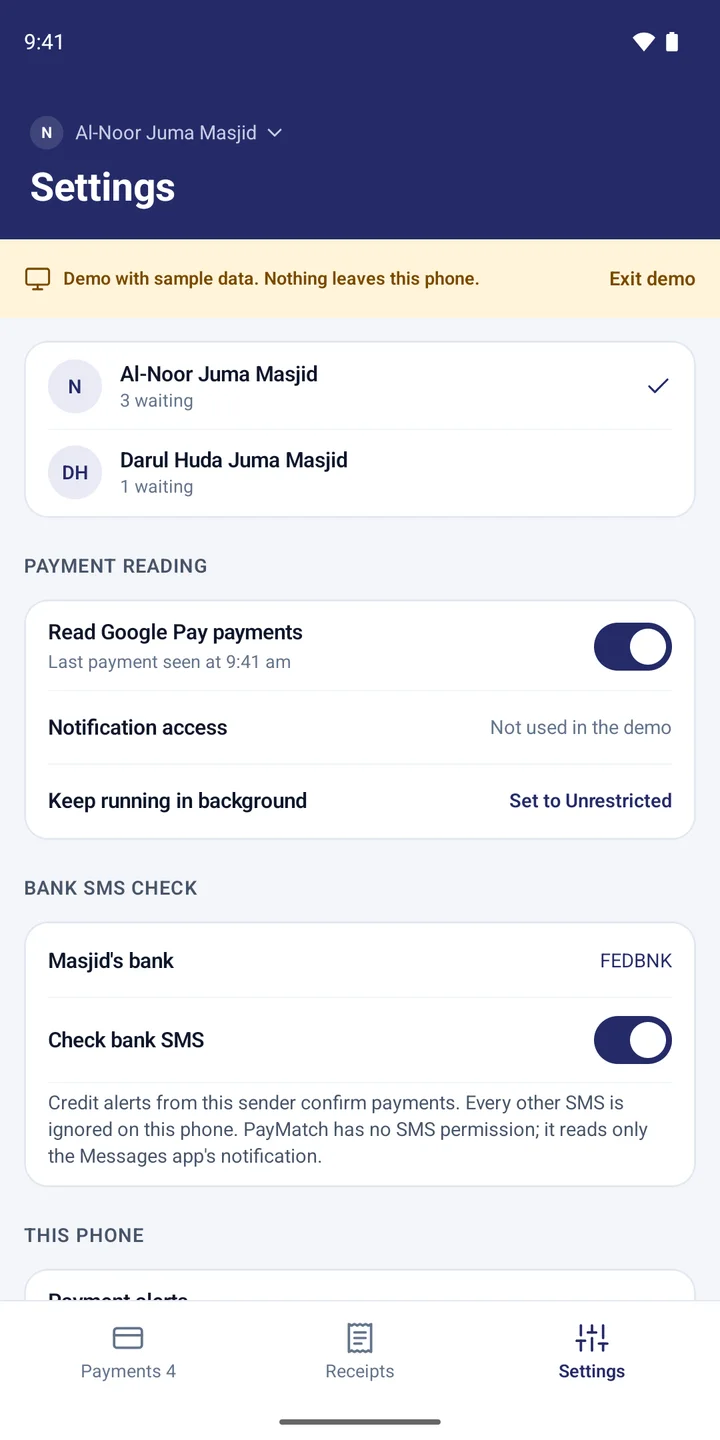
An admin can enter the name the masjid's bank sends credit SMS from, in Settings,
then PayMatch (for example FEDBNK). When the bank's credit message for
the same amount arrives, the payment shows Bank confirmed, and the bank's
reference number (UTR) is saved with it. PayMatch has no SMS permission: it reads only that bank's
notification and ignores every other message.
What PayMatch reads, and what it never reads
- It reads Google Pay notifications on that phone: who paid, the amount, the note and the time. If the bank check is on, also the bank's credit alert.
- It never reads other apps, any other SMS, OTPs, the bank balance, the UPI PIN or passwords. It never makes or moves a payment.
- It sends payments with a member code to the masjid's InflowBooks account, for you to confirm. Payments without a code stay on the phone, encrypted, until you pick a member. If you do not pick one within 7 days, they are deleted.
Good to know
- PayMatch is part of every InflowBooks plan. There is no extra charge.
- It is for Android phones, and on the masjid's side it reads Google Pay. Money received in other apps can still be added on the dashboard, as before.
- On the committee of more than one masjid? Connect each from its own dashboard and switch between them in the app. Each masjid sees only its own payments.
- Lost or changed a phone? An admin disconnects it in Settings, Committee logins.
- Want to see it first? Tap Try the demo in the app: a sample masjid on your phone, and nothing is sent or saved. The app screens in this guide are from that demo.
Every step is also in the PayMatch guide. Get the app from Google Play. For a phone without Google Play, the download page has the same app as an APK, with its checksum.
Common questions
Does every member need to download PayMatch to pay?
No. Members pay by UPI from any app, the same way they do now. Only the committee phone where the masjid’s Google Pay payments arrive needs PayMatch.
Can PayMatch record a payment on its own?
Not unless you ask it to. It only suggests: a committee member checks every payment and taps Confirm, and only then is it recorded and the receipt made. The one exception is Desk mode started with "Confirm automatically". There, a payment for exactly the amount on the QR code you showed is recorded in your name without a tap.
The name in Google Pay is not the member’s name. Is that a problem?
No. When the member pays with the Pay button, the member code says who paid, not the name. Without a code, you pick the member once and tick Remember, and PayMatch suggests that member the next time the same person pays.
Is PayMatch on iPhone?
No. It is for Android phones only, because iPhones do not let an app read payment notifications. Committees on iPhone can still record UPI payments on the InflowBooks dashboard as before.
Is it safe to let an app read payment notifications?
PayMatch reads only Google Pay notifications and, if you choose, the credit SMS from the masjid’s own bank. It has no SMS, contacts or call log permission, it cannot see the bank balance or the UPI PIN, and it cannot send money. It shows all of this before you allow anything.
A member owes in two funds. Do they have to pay twice?
No. Pay all dues on the masjid’s payments page makes one QR code for everything they owe the masjid. The committee confirms that one payment, and it is split across the funds with a receipt for each fund.
Why does the payments page ask for ₹2,000 at a time?
UPI apps take up to ₹2,000 in one payment when the QR code is opened from the phone’s gallery. So the page asks for the oldest dues first and shows the rest afterwards. A QR code scanned from another phone, or the one the committee shows in PayMatch, is not limited this way.